AWS SageMaker AI
DRAFT THIS DOCUMENT IS A WORK IN PROGRESS
Deploying Apertus currently requires a customized vLLM container or environment. Since Apertus 1.5 introduces a novel multimodal architecture for native image and audio processing, the model dependencies are not yet fully merged into upstream vLLM and Transformers releases. The Apertus team provides pre-built Docker images and custom forks of vLLM and Transformers that you can use in the meantime.
The following guide is based on the article Switzerland’s Open-Source Apertus LLMs now available on Amazon SageMaker AI published by Nicolas Jourdan, Arlind Nocaj, and Malte Reimann at Amazon.
Get Started with Apertus on AWS Infrastructure
Apertus marks an important step in Switzerland’s open-source AI development. As the model and its ecosystem mature, it can be applied across a wide range of domains, from public services and healthcare to finance and research. Apertus can be deployed on AWS’ AI-ready global infrastructure, including the AWS Europe (Zurich) Region, and scale seamlessly from experimentation to production-ready.
This enables Swiss and European organizations to leverage AI while keeping data residency aligned with their geographic preferences. Amazon SageMaker AI provides the enterprise-grade infrastructure needed to handle the scale and complexity of 70/8-billion parameter models, delivering the flexibility and reliability essential for both public sector and commercial customers. Deploying the model on SageMaker AI also gives customers full control over their data, helping organizations meet strict privacy, security, and compliance requirements. For more details, see the AWS Trust Center.
SageMaker JumpStart is a machine learning (ML) model hub that accelerates your ML journey. With SageMaker JumpStart, you can evaluate, compare, and deploy pre-trained foundation models (FMs), including the newly available Apertus family. As part of the AWS AI offerings, SageMaker JumpStart provides customizable ML solutions which you can deploy to SageMaker AI inference endpoints within your AWS infrastructure. It complements Amazon Bedrock, which offers serverless API foundation model inference along with features like customizations, knowledge bases, agents, and guardrails.
Key technical benefits of SageMaker AI and SageMaker JumpStart include:
- Optimized inference stack — Pre-built containers for LLM inference with GPU acceleration, memory optimization, and efficient tokenization
- Auto-scaling endpoints — Managed infrastructure automatically scales compute resources based on request volume and latency requirements, including scale-to-zero
- Production-ready API — SageMaker real-time inference endpoints with standardized API calls, SDK and AWS Identity and Access Management (IAM) integration
- Integrated monitoring — Built-in metrics for throughput, latency, and resource utilization with an Amazon CloudWatch integration
- Enterprise security — Amazon Virtual Private Cloud (VPC) deployment with IAM access control and network isolation options
Deploying Apertus on SageMaker AI
Deploying the Apertus models to SageMaker AI can be done via the JumpStart web UI as well as programmatically through the Amazon SageMaker Python SDK for which we provide an example notebook. In this blog post, we will explore both methods, providing maximum flexibility. We recommend that you use the following instance types for deployment and request the respective Service Quota for Amazon SageMaker AI inference endpoints depending on your needs. Further details on the achievable throughput with Apertus models on popular instance types are included in the Throughput Performance section below.
- For a testing setup we recommend:
g6.48xlarge,g5.48xlargeorg6e.48xlargefor Apertus 70B- Any
g5/g6/g6einstance for Apertus 8B
- For a production setup with > 10 concurrent requests per second we recommend:
p4d.24xlargeorp5.48xlargefor Apertus 70Bg5.xlarge,g6e.xlargeorp4d.24xlargefor Apertus 8B
Deploying Apertus with SageMaker JumpStart
The Apertus 1.5 models are available on SageMaker JumpStart. We recommend the Instruct versions for most users, as they are fine-tuned to follow natural language instructions more effectively:
Complete the following steps to deploy Apertus through the SageMaker JumpStart UI.
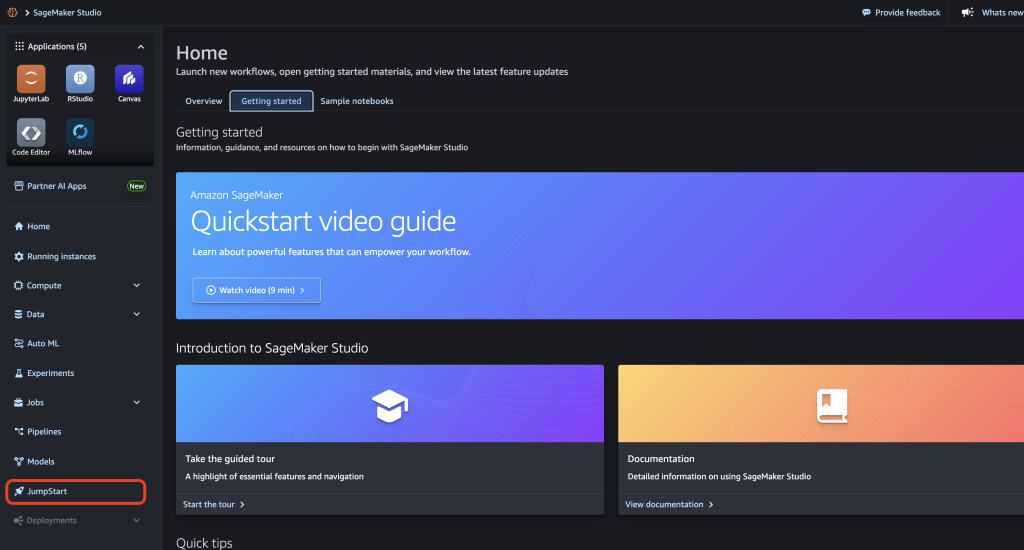
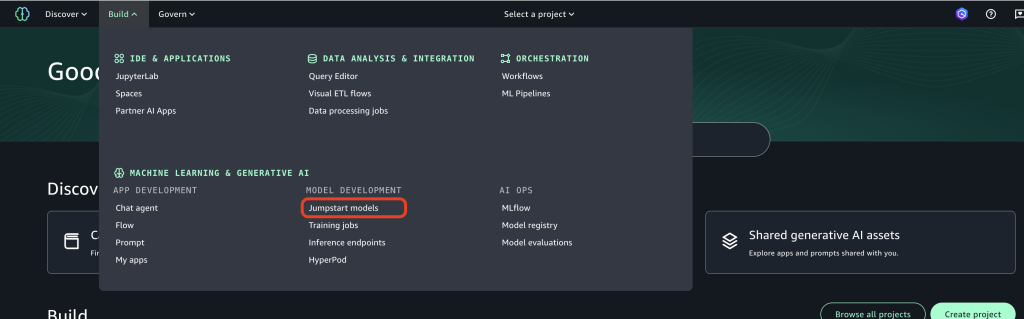
To access SageMaker JumpStart, use one of the following methods:
- In Amazon SageMaker Studio, choose JumpStart in the navigation panel.
Alternatively, in Amazon SageMaker Unified Studio, on the Build menu, choose JumpStart models under Model Development.
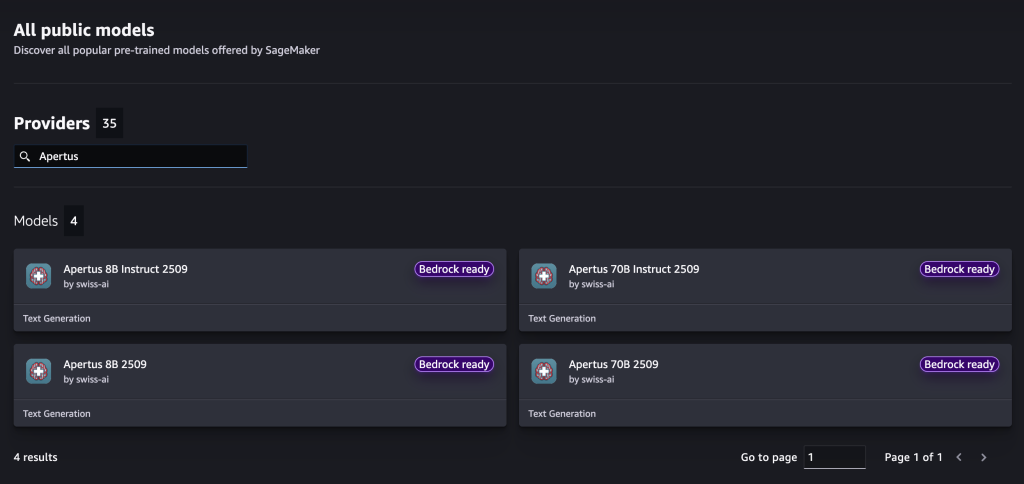
Search for Apertus in the model browser:
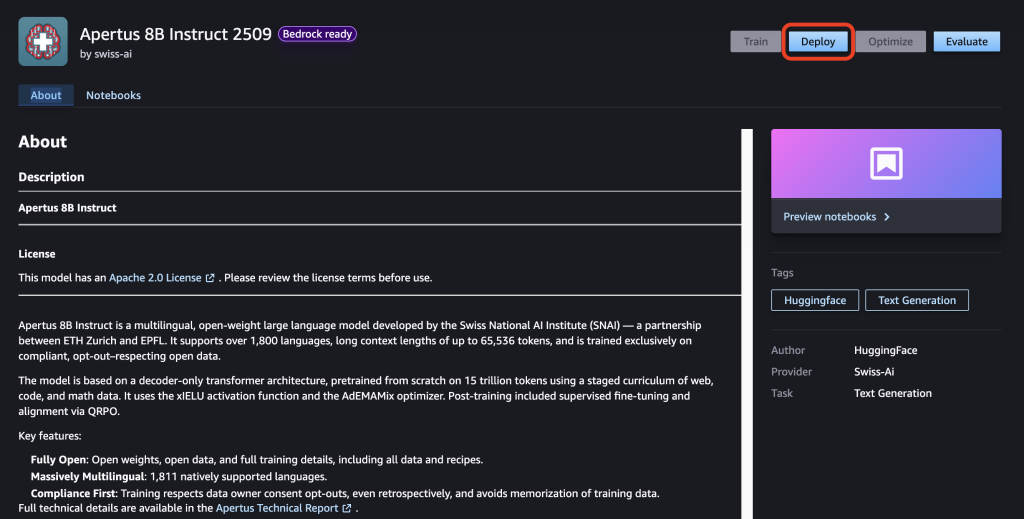
Select your preferred model and click on Deploy.
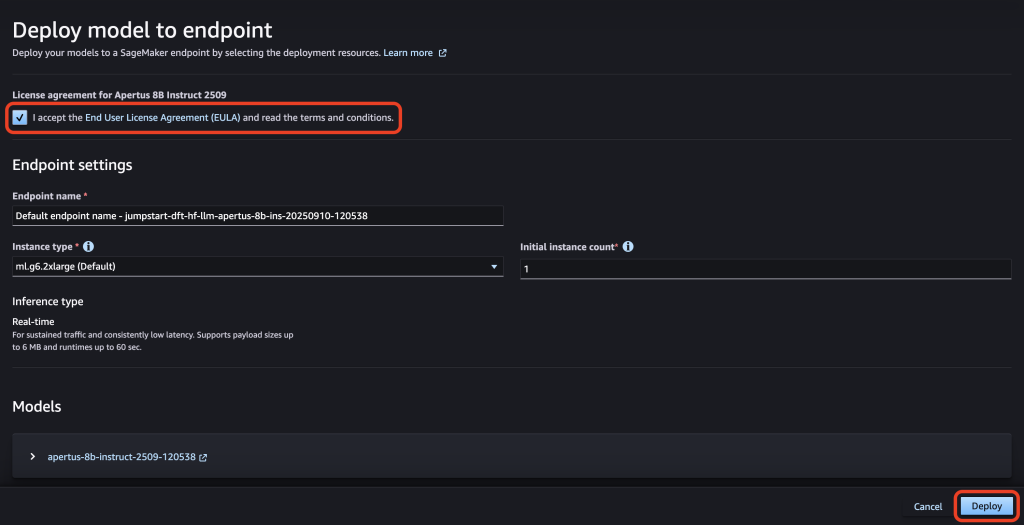
Select your preferred Instance Type and click on Deploy.
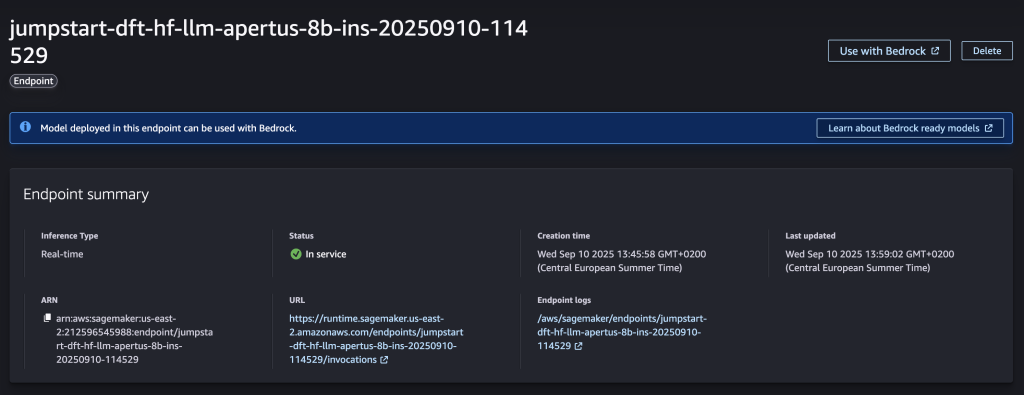
After some time, the endpoint status will show as In service and you will be able to run inference requests against it.
Deploying Apertus using the SageMaker Python SDK
This method provides an alternative to the SageMaker JumpStart web UI. Instead of using the web interface, you will create an inference endpoint directly through the SageMaker API, allowing for advanced customization. The GitHub repository Generative AI Inference Examples on Amazon SageMaker contains example notebooks showing how to deploy popular LLMs to Amazon SageMaker AI inference endpoints. We provide the Swiss-ai-apertus-LMI-V15.ipynb notebook in the 01-models/Swiss-AI/Apertus directory inside the repository for a step-by-step guide on how to configure and deploy the Apertus models to a SageMaker AI inference endpoint.
Begin by setting up an environment to run the notebook in:
- Create a JupyterLab space in Amazon SageMaker Studio: Amazon SageMaker AI Developer Guide
- Use the JupyterLab IDE in Amazon SageMaker Unified Studio: Amazon SageMaker Unified Studio User Guide
- Execute the notebook in a local Python environment with Jupyter installed
To get started with the notebook, clone the GitHub repository into your environment:
git clone https://github.com/aws-samples/sagemaker-genai-hosting-examples.git
cd sagemaker-genai-hosting-examples/01-models/Swiss-AI/Apertus/

# e.g. with Visual Studio Code, open the notebook via
code Swiss-ai-apertus-LMI-V15.ipynb
Then follow the instructions in the notebook Swiss-ai-apertus-LMI-V15.ipynb. It contains all the code to deploy to a SageMaker AI inference endpoint and sample code to invoke the endpoint with or without response streaming.
Thinking Mode
To enable thinking mode when deploying via the SageMaker Python SDK, set the OPTION_REASONING_PARSER environment variable to apertus and OPTION_ENABLE_THINKING to true in your container environment. The tool-call flags are intentionally omitted: tool calling is unsupported in thinking mode, so we don’t recommend combining the two.
For Apertus-v1.5-8B:
from sagemaker import image_uris, Model
import sagemaker

image_uri = image_uris.retrieve(
    framework="djl-lmi",
    region="<your-region>"
)

model = Model(
    image_uri=image_uri,
    env={
        "HF_MODEL_ID": "swiss-ai/Apertus-v1.5-8B",
        "OPTION_CHAT_TEMPLATE_CONTENT_FORMAT": "string",
        "OPTION_GPU_MEMORY_UTILIZATION": "0.6",
        "OPTION_MAX_MODEL_LEN": "262144",
        "OPTION_REASONING_PARSER": "apertus",
        "OPTION_ENABLE_THINKING": "true",
        "HF_TOKEN": "<your-huggingface-token>",
    },
    role="<your-sagemaker-role>",
)
For Apertus-v1.5-70B, set OPTION_TENSOR_PARALLEL_DEGREE to 4 and adjust OPTION_GPU_MEMORY_UTILIZATION:
model = Model(
    image_uri=image_uri,
    env={
        "HF_MODEL_ID": "swiss-ai/Apertus-v1.5-70B",
        "OPTION_CHAT_TEMPLATE_CONTENT_FORMAT": "string",
        "OPTION_TENSOR_PARALLEL_DEGREE": "4",
        "OPTION_GPU_MEMORY_UTILIZATION": "0.8",
        "OPTION_MAX_MODEL_LEN": "262144",
        "OPTION_REASONING_PARSER": "apertus",
        "OPTION_ENABLE_THINKING": "true",
        "HF_TOKEN": "<your-huggingface-token>",
    },
    role="<your-sagemaker-role>",
)
Omni Patch
The Apertus 1.5 release has not been completely merged in the Transformers and vLLM libraries. In particular, to use multimodal features and tool calling capabilities, a custom configuration is recommended.
The Apertus team has provided vLLM plugins until the Apertus logic is folded into the core vLLM release. You can find these in the apertus-omni-tokenizer repository, which has documentation for vLLM.
Here is an overview of the compatibility by version:
| vLLM version range | What’s in vLLM already | Should you use the plugin? |
|---|---|---|
| ≤ v0.10.2 (pre-refactor / older layouts) | Only special-token reasoning delimiters, no apertus parser | ❌ — plugin doesn’t fit |
| v0.19 – v0.21 | Layout supported by plugin but parser not upstreamed yet | ✅ Only way |
| v0.22 – v0.24 | Upstream finally ships identical parser without the plugin registration line | ✅ Only if you need to freeze parser version, iterate without frequent vLLM upgrades, hot-fix a production parser bug, or use reasoning-tracking independent of engine patch |
| v0.24+ w/ same layout | Same as v0.22+ — upstream parser exists | ✅ only if you need any of the bullets above (otherwise just --tool-call-parser apertus --reasoning-parser apertus) |
If your SageMaker LMI image bundles a vLLM version that requires the plugin, you will need to build a custom container that includes the parser files and registers them via OPTION_TOOL_PARSER_PLUGIN / OPTION_REASONING_PARSER_PLUGIN environment variables. See the apertus-omni-tokenizer README for details, and contact us if you have questions.
Consuming Apertus
Successful deployment can be tested via the AWS CLI as well as via the AWS SDK for Python (boto3). We will walk through both methods in this section.
Invoke through AWS CLI
You can invoke your endpoint via the AWS CLI as follows. Please replace <endpoint-region> and <endpoint-name> with applicable values for your endpoint.
aws sagemaker-runtime invoke-endpoint \
  --endpoint-name <endpoint-name> \
  --content-type "application/json" \
  --region <endpoint-region> \
  --body '{
    "messages": [
      {
        "role": "system",
        "content": "You are a helpful and friendly assistant."
      },
      {
        "role": "user",
        "content": [
          {
            "type": "text",
            "text": "I am traveling to Zurich. How can I say hello in Swiss German?"
          }
        ]
      }
    ]
  }' \
  /dev/stdout

# Example Output:
{
  ...
  "choices": [
    {
      "message": {
        "role": "assistant",
        "content": "You can say \"Grüezi\" to say hello in Swiss German..."
      }
    }
  ],
  ...
}
Invoke through boto3 Python SDK
You can invoke your endpoint via the SDK as follows. Please replace <endpoint-region> and <endpoint-name> with applicable values for your endpoint.
import boto3
import json

# Create SageMaker runtime client
client = boto3.client('sagemaker-runtime', region_name='<endpoint-region>')

# Invoke the endpoint
response = client.invoke_endpoint(
    EndpointName='<endpoint-name>',
    ContentType='application/json',
    Body=json.dumps({
        "messages": [
            {
                "role": "system",
                "content": "You are a helpful and friendly assistant."
            },
            {
                "role": "user",
                "content": [
                    {
                        "type": "text",
                        "text": "I am traveling to Zurich. How can I say hello in Swiss German?"
                    }
                ]
            }
        ],
        "parameters": {
            "max_new_tokens": 256,
            "do_sample": True,
            "temperature": 0.2
        }
    })
)

# Read and decode the response
result = json.loads(response['Body'].read().decode())
print(result)
A more advanced example for consuming the model via the SDK is included in the aforementioned Swiss-ai-apertus-LMI-V15.ipynb notebook.
Clean Up
To clean up the model and endpoint, use the following code in Python or the AWS CLI, respectively:
# Clean up using the Python SDK
client.delete_endpoint()
client.delete_model()
# Clean up using the AWS CLI
aws sagemaker delete-endpoint \
--endpoint-name <endpoint-name> \
--region <endpoint-region>
aws sagemaker delete-model \
--model-name <model-name> \
--region <endpoint-region>Alternatively, you can delete the endpoint in the SageMaker Studio web UI under Deployments → Endpoints.
Throughput Performance
We benchmarked the throughput performance of both model sizes with multiple instance types to give general performance guidance for production deployments. The benchmark setup uses the open source Deep Java Library (DJL) Large Model Inference (LMI) container with vLLM. The LMI container image bundles the model server with optimized inference libraries for high-performance LLM deployment. This setup is equivalent to an Apertus model deployed with Amazon SageMaker JumpStart. We use the vLLM provided benchmark suite and the ShareGPT dataset for the experiments.
Apertus 1.5 70B benchmark results:
| Instance Type | Request Throughput (req/s) | Output Token Throughput (tok/s) | Total Token Throughput (tok/s) |
|---|---|---|---|
g5.48xlarge | 0.44 | 88.00 | 188.70 |
g6.48xlarge | 1.09 | 227.12 | 476.05 |
g6e.48xlarge | 3.08 | 640.23 | 1359.62 |
p4d.24xlarge | 10.87 | 2193.92 | 4704.70 |
p5.48xlarge | 27.72 | 5597.77 | 12002.46 |
Apertus 1.5 8B benchmark results:
| Instance Type | Request Throughput (req/s) | Output Token Throughput (tok/s) | Total Token Throughput (tok/s) |
|---|---|---|---|
g5.xlarge | 4.91 | 884.02 | 2005.07 |
g6.xlarge | 3.57 | 648.29 | 1462.92 |
g6e.xlarge | 14.61 | 2732.00 | 6081.87 |
p4d.24xlarge | 56.77 | 10629.85 | 23647.35 |
The benchmark results indicate that for production workloads, p5.48xlarge or p4d.24xlarge instances are recommended. From a cost/performance perspective the smaller g5.xlarge instance type is advisable for Apertus 8B.
We observed that g6e.48xlarge instances achieve a 3× improvement in request throughput for Apertus 70B when deploying two model copies on the same instance, each using four of the eight GPUs (tensor_parallel_degree = 4). This configuration places each model copy within one of the two GPU affinity groups, reducing cross-group communication and minimizing overhead.
Our tests prioritized throughput. Production setups should fine-tune inference settings for the specific use case, for example to optimize for low latency.
Next Steps
- Explore deployment options: Whether you prefer the simplicity of SageMaker JumpStart or the customization possibilities of a Jupyter notebook implementation, both paths provide straightforward ways to get started with Apertus on AWS.
- Contact your AWS account team: If your organization has a specific use case, we recommend reaching out to your AWS account team. They can help you get your use case into production — https://aws.amazon.com/contact-us/sales-support/.
- View the model cards for Apertus on Hugging Face.